

TL;DR
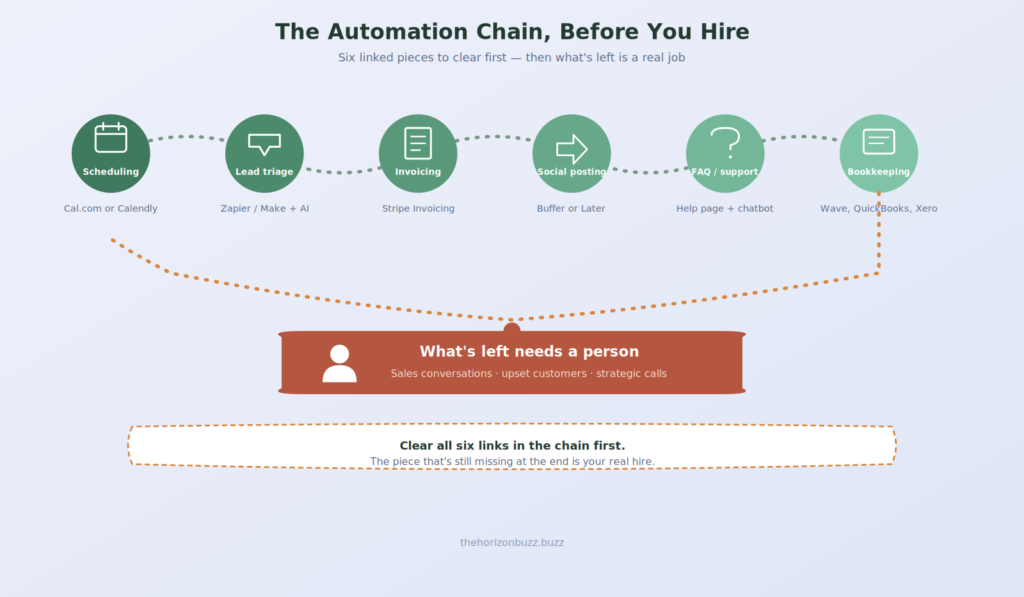
The instinct to hire usually shows up right after a task starts feeling repetitive and time-consuming which is also exactly the signal that the task might be automate instead. This guide isn’t a list of ideas it’s six specific automations you can actually set up this week, each with the exact steps, realistic setup time, and cost, so you know exactly what to do before your next hiring decision.
The Filter: Judgment vs. Repetition
Before the how-to steps, one filter is worth keeping in mind: is this task the same every time, or does it require a real decision each time?
Tasks that are the same every time — scheduling, sending a templated follow-up, categorizing a transaction — are strong automation candidates. Tasks that require judgment that changes based on context — handling an angry customer, deciding which lead to call personally — are what you actually want a person for. Everything below is picked because it passes the first test, not the second.
1. Scheduling and Calendar Coordination
The problem: Manually emailing back and forth to find a meeting time.
How to actually set it up:
- Sign up for Cal.com (free tier) or Calendly (free tier covers one event type).
- Connect it to your Google or Outlook calendar so it reads your real availability — this takes one click via OAuth.
- Set your available hours (e.g., weekdays 9am–5pm) and add a buffer between meetings (10–15 minutes is typical) so back-to-back calls don’t run you over.
- Create one event type first — “30-min intro call” — rather than five variations. You can add more later once you see what people actually book.
- Replace your email signature and any “let’s find a time” message with the booking link. That’s the whole rollout — no announcement needed, it just becomes how you schedule from now on.
Time to set up: About 20 minutes. Cost: Free for a single user on either platform’s free tier.
2. Inbound Lead or Inquiry Triage
The problem: Reading every inbound message and manually deciding what it is and who should see it.
How to actually set it up:
- Pick where inquiries currently land — a contact form, a shared inbox, or a Slack channel.
- Set up a no-code automation platform (Zapier or Make free tier) triggered by a new form submission or incoming email.
- Add an AI step in the automation that reads the message and outputs a category (e.g., sales, support, partnership) and a one-line summary — the AI Automation guide on this site has the exact prompt structure to use for this step.
- Route the categorized message: sales inquiries to your own inbox flagged “high priority,” support questions to a separate folder, spam/irrelevant ones filtered out automatically.
- Run it against 15–20 of your last real inquiries manually first, checking whether the categories are right, before turning it on live.
Time to set up: 1–2 hours for the first version, mostly in Step 3. Cost: Free to start on Zapier/Make’s free tier; a few dollars a month once volume grows past the free limits.
3. Invoicing and Payment Follow-Ups
The problem: Manually creating invoices and remembering to chase late payments.
How to actually set it up:
- If you’re not already using one, set up Stripe Invoicing or your existing payment processor’s invoicing feature — most modern ones (Stripe, Square, even PayPal) have this built in.
- Create a reusable invoice template with your standard payment terms (e.g., due in 14 days) so you’re not rebuilding one from scratch each time.
- Turn on automatic payment reminders — Stripe Invoicing, for example, lets you set reminders to send automatically 3 days before and after the due date without you doing anything.
- For recurring clients, set up a subscription or recurring invoice schedule instead of manually issuing one every month.
- Check your dashboard weekly (not daily) for anything that’s gone genuinely overdue and needs a personal follow-up — the automation handles the routine chasing, you handle the exceptions.
Time to set up: About 30–45 minutes if you’re already using a payment processor. Cost: Usually free or built into existing payment processing fees you’re already paying.
4. Social Media Posting and Scheduling
The problem: Manually logging into three platforms every time you want to post something.
How to actually set it up:
- Sign up for Buffer or Later (both have functional free tiers for a small number of channels).
- Connect your social accounts — this is a one-time OAuth login per platform.
- Set up a simple weekly rhythm: block 30 minutes once a week to write and schedule everything for the next 7 days, rather than posting in the moment.
- Use the tool’s built-in queue/calendar view to space posts out automatically at good times rather than manually picking a time for each one.
- Still write the actual captions yourself, or draft them with AI and edit — the automation is for the mechanical publishing step, not for replacing your voice.
Time to set up: 15–20 minutes initial setup, then 30 minutes weekly instead of daily interruptions. Cost: Free for a small number of accounts on either platform.
5. Repetitive Customer Questions
The problem: The same 3–4 questions make up half your support inbox.
How to actually set it up:
- Pull your last 30–50 support messages and actually count what’s repetitive — this step matters, because guessing usually undercounts how repetitive it really is.
- Write clear, specific answers to the top 5 recurring questions and publish them as a simple FAQ page — this alone, with no chatbot at all, resolves a surprising amount of repeat volume once it’s linked prominently (footer, contact page, confirmation emails).
- If volume is high enough to justify it, add a basic chatbot (Intercom, Crisp, or even a free tool like Tidio) trained only on that FAQ content — resist the urge to make it handle everything; a narrow, accurate bot beats a broad, unreliable one.
- Route anything the FAQ or bot can’t confidently answer straight to a human inbox — don’t let it guess on things it wasn’t trained on.
- Revisit the FAQ monthly and add new recurring questions as they show up — this is a living document, not a one-time task.
Time to set up: 2–3 hours for the FAQ page itself; add half a day if you’re layering in a chatbot. Cost: Free for the FAQ page; most basic chatbot tools have a free tier for low message volume.
6. Basic Bookkeeping Categorization
The problem: Manually sorting every transaction into the right category every month.
How to actually set it up:
- Connect your business bank account and card to QuickBooks, Xero, or Wave (Wave has a genuinely free tier for basic use).
- Let the tool auto-categorize the first month of transactions, then go through and manually correct anything it got wrong — this is the step that actually teaches the system your patterns.
- Set up “rules” for recurring transactions (e.g., “always categorize payments from [your main client] as Revenue”) so the same correction doesn’t need to happen every month.
- Block 15–20 minutes at the end of each month to review the categorized transactions rather than doing it transaction-by-transaction throughout the month.
- This doesn’t replace an accountant for taxes or genuine financial strategy — it just means the raw categorization work isn’t eating hours by the time you hand things off to one.
Time to set up: About an hour for initial setup, then 15–20 minutes monthly. Cost: Free (Wave) to roughly $15–30/month for QuickBooks or Xero’s entry-level plans.
What You Probably Shouldn’t Automate Yet
Not everything that feels time-consuming should be automated before you hire. A few things worth keeping human, even if it’s still you doing them for now:
- Sales conversations with real prospects — early-stage sales is where founders learn what the market actually wants; automating this too early means losing that signal.
- Anything involving a genuinely upset customer — automated responses to frustrated people tend to make things worse, not better.
- Strategic decisions disguised as busywork — sometimes what looks like a repetitive task (like weekly planning) is actually where real thinking happens, and automating it just means the thinking stops happening.
How to Know You’re Ready to Hire Instead
After working through the six automations above, a clear signal starts to show up: what’s left is work that requires judgment, relationship-building, or creative decision-making the kind of work that doesn’t get easier with a better tool, only with a capable person. That’s the point where hiring stops being “I need help with X” and becomes “I need someone who can make good decisions about X,” which tends to produce a much better hire, and a much clearer job description, than hiring out of overwhelm.
Start With a Week, Not a Job Posting
None of these six automations require technical skill beyond following a setup wizard, and none of them cost more than a low double-digit monthly fee to start. Realistically, working through all six takes a single focused week, most of it in short setup sessions rather than long blocks of time. Do that before your next hiring decision, and whatever’s left on your plate is a much clearer, much more honest picture of what you actually need a person for.
Related Buzz: We also covered [The Three-Tool Stack Most Indie Builders Use]